Key takeaways
- iOS 27 Shortcuts gets more than 35 new and improved actions, plus a new way to build shortcuts simply by describing them.
- Highlights include Messages and Photos actions, AI that can search the web, Markdown in Notes and a new “When a screenshot is saved” automation.
- Our view: a powerful app most people never open. Apple should promote it far more.
iOS 27 Shortcuts is getting one of its biggest upgrades in years. Apple has published official notes listing more than 35 new and improved actions and automations, on top of a new, beginner-friendly way to create shortcuts by simply describing what you want.
Honestly, we are not Shortcuts power users. We use it for a couple of simple things and that is it. But that is exactly why this update caught our attention: some of these new features solve problems we deal with every single day.
In this article: What’s new · The app most people ignore · The screenshot problem · Shortcuts we actually want · How much would we automate? · FAQ
What’s new in iOS 27 Shortcuts
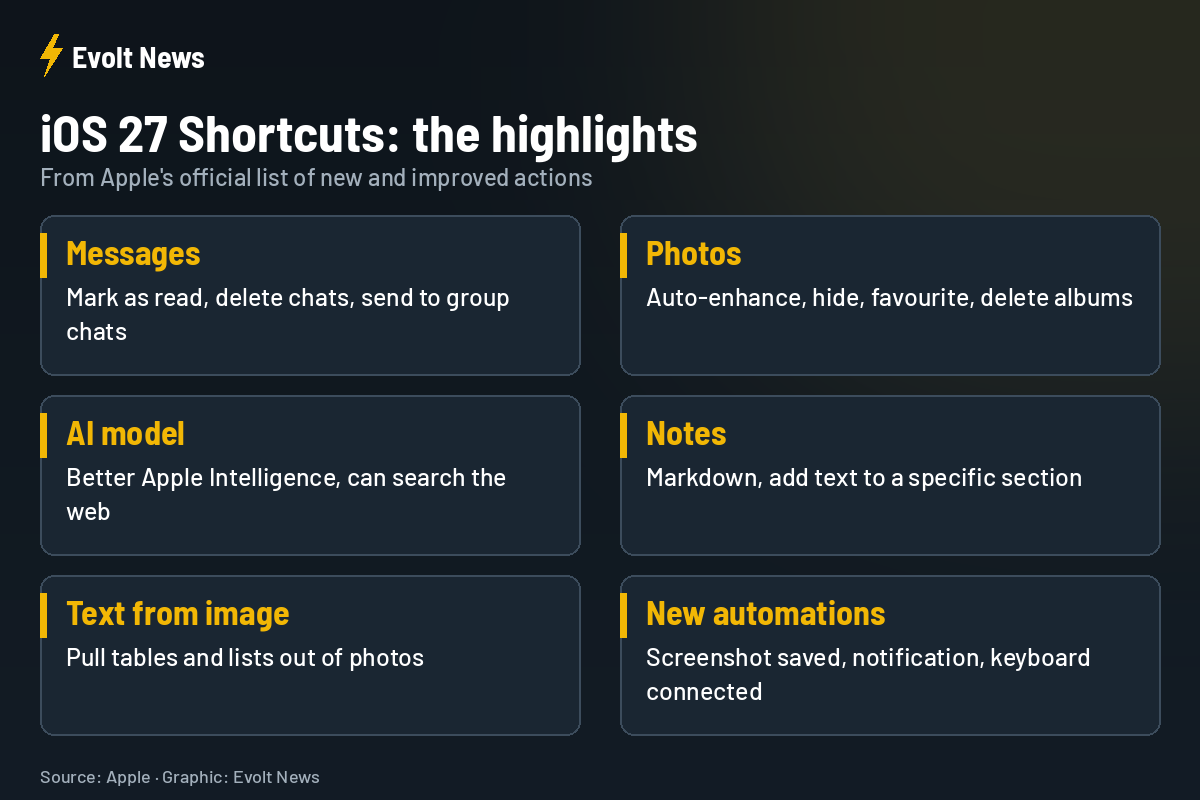
| Area | What’s new |
|---|---|
| Messages | Mark as read, delete messages and conversations, send tapbacks, send to group chats, filter by sender |
| Photos | Auto-enhance, hide, favourite, find and delete albums, open a photo |
| Apple Intelligence | “Use Model” supports enhanced models and can get up-to-date information from the web |
| Notes | Markdown support, add text to a specific section of a note |
| Images | Extract tables and lists from a photo |
| Maps | Travel time with “Avoid Tolls” and “Avoid Highways” |
| Logic | “Otherwise If” for more complex shortcuts |
| New automations | When a notification arrives, when a keyboard connects, when a screenshot is saved |
There are also new actions for Reminders, VPN connections and storing content between shortcuts, plus a “Get Selected Text” action.
The brilliant app most people never open
Shortcuts has a strange reputation. People who know how to use it praise it constantly. Yet we hardly know anyone who uses it seriously. We use it ourselves only for a few basic things, such as calls and notes, and nothing more.
That is a missed opportunity, and we think it is partly Apple’s fault. Apple spends a lot of energy promoting cameras and chips, but rarely shows ordinary people what Shortcuts can do. With an app this powerful, Apple should put far more emphasis on it. The new option to create a shortcut just by describing it in plain words could finally change that, because it removes the hardest part: building it.
The screenshot problem finally has a fix
Here is our everyday frustration. We take a lot of screenshots for work, and they fill up the iPhone’s storage surprisingly fast. So every now and then, we sit there and delete them one by one, by hand. It is tedious and, honestly, it makes us feel a bit silly.
The new “When a screenshot is saved” automation is exactly what we have been waiting for. Our ideal setup: every screenshot automatically goes into its own folder, and when we give the command, those screenshots are deleted. No more manual clean-up.
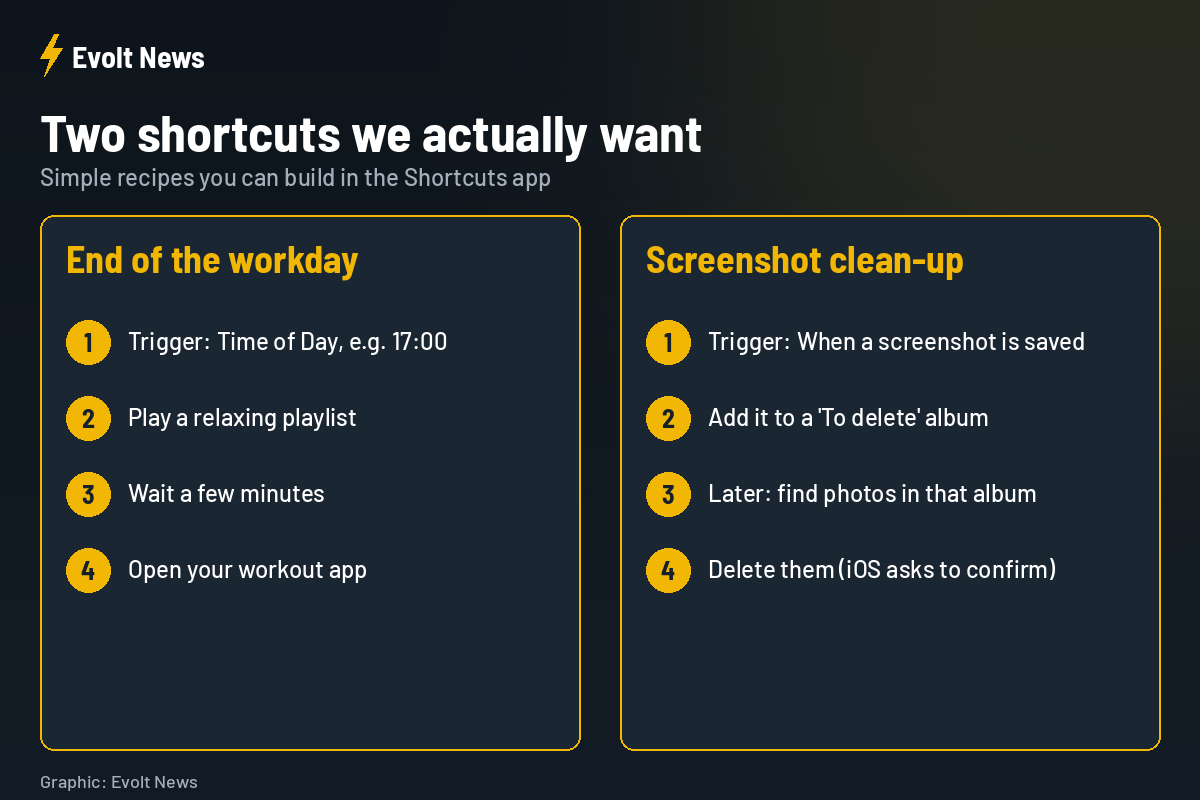
Two shortcuts we actually want to build
1. The end-of-workday reset
At the end of the working day, we would love a shortcut that plays a few minutes of relaxing music in the office, so we can switch off mentally, and then opens our workout app to prepare the training for the gym. In the Shortcuts app, you can build this with a personal automation triggered at a set time, followed by “Play Music”, “Wait” and “Open App”.
2. Automatic screenshot clean-up
Create an automation that runs when a screenshot is saved and adds it to a dedicated album. Then build a second shortcut that finds the photos in that album and deletes them. iOS asks you to confirm before deleting photos, which is a useful safety net.
3. Faster answers with AI
Because the “Use Model” action can now look up current information on the web, we would also use Shortcuts to find articles and information quickly, or to check the fastest route before leaving. Anything that makes those everyday searches faster is welcome.
How much would we let the iPhone automate?
This is where we are more careful. Honestly, we would be afraid to let the iPhone delete things completely on its own, especially messages or photos. At the start, we would want clear separation: one folder for photos, another for messages, and clear rules about what can be deleted and what is important and must stay on the phone.
People who really know Shortcuts would probably not worry about this. But for everyone else, our advice is to start with automations that move or organise things, and only add automatic deleting once you trust your setup.
iOS 27 Shortcuts FAQ
How many new actions does iOS 27 add to Shortcuts?
More than 35 new and improved actions and automations, according to Apple’s official notes.
Can I create a shortcut without building it step by step?
Yes. iOS 27 adds a way to describe the shortcut you want in plain words, and the app builds it for you.
Can Shortcuts automatically handle screenshots?
Yes. iOS 27 adds a “When a screenshot is saved” automation on iPhone, iPad and Mac.
Can Shortcuts use Apple Intelligence?
Yes. The “Use Model” action supports enhanced Apple Intelligence models and can now get up-to-date information from the web.
Sources: Apple, 9to5Mac.