Key takeaways
- iOS 27 adds Connectivity Assist, which uses cellular data when your Wi-Fi is too weak or slow to be useful.
- You turn it on or off in Settings, Wi-Fi. You can also switch it off for one specific network.
- My view: finally a fix for the phone that clings to a dead Wi-Fi in the driveway. Just watch your data if your plan is small.
iOS 27 includes Connectivity Assist, a feature that uses cellular data to keep you connected when your Wi-Fi is slow or unusable, according to an Apple support document. Apple says it is not used while international roaming, in cellular Low Data Mode, or with some third-party apps that stream audio and video.
In this guide: The problem every iPhone owner knows · How to turn Connectivity Assist on or off · How to keep one network on Wi-Fi only · When it does not work · Watch your mobile data · My take · FAQ
The problem every iPhone owner knows
You walk out of the house, sit in the car, open Maps, and nothing loads. Your iPhone is still holding on to the home Wi-Fi with one bar, too weak to work and too strong to let go. The same happens in the backyard, at the edge of a coffee shop, or at an airport gate.
Connectivity Assist is Apple’s answer. When it sees that Wi-Fi is there but useless, it quietly uses cellular data so your app keeps working. Apple itself names backyards, driveways, coffee shops, airports and sports venues as examples.
How to turn Connectivity Assist on or off
- Open the Settings app.
- Tap Wi-Fi.
- Scroll down and switch Connectivity Assist on or off.
That’s it. No restart needed. If you can’t find the switch, check that your iPhone is updated to iOS 27 in Settings, General, Software Update.

How to keep one network on Wi-Fi only
Apple says you can turn Connectivity Assist off for a specific network. This is useful for a router setup where you always want to stay on Wi-Fi, for example a home office network, a printer, or a smart home hub that only works on the local network.
Open Settings, Wi-Fi, tap the network you want to change, and switch the option off for that network only. Everywhere else, the feature keeps working.
When it does not work
| Situation | Connectivity Assist |
|---|---|
| International roaming | Not used |
| Cellular Low Data Mode on | Not used |
| Some third-party apps that stream audio or video | Not used |
| Weak home Wi-Fi in the driveway | Works |
| Busy coffee shop or airport Wi-Fi | Works |
So if you travel abroad, don’t worry that it will burn your roaming data. Apple keeps it off there.
Watch your mobile data
There is one catch. With Connectivity Assist on, your iPhone can use more cellular data, because it no longer waits on bad Wi-Fi. If you have unlimited data, leave it on and forget it. If your plan is small, keep an eye on it in Settings, Cellular, or in your carrier’s app.
My advice: turn it on, use it for a week, and check how much data it used. For most people the extra is small, and the time you save in the car is worth it.
My take
This is the kind of feature I like from Apple. No AI show, no subscription, no new device to buy. It just fixes something that has annoyed iPhone owners for years. Apple should do more of this, and less marketing for things nobody asked for.
Also on Evolt News: The best iOS 27 features that are not AI · iOS 27.3: new features and release date · How to cancel subscriptions on iPhone and Mac
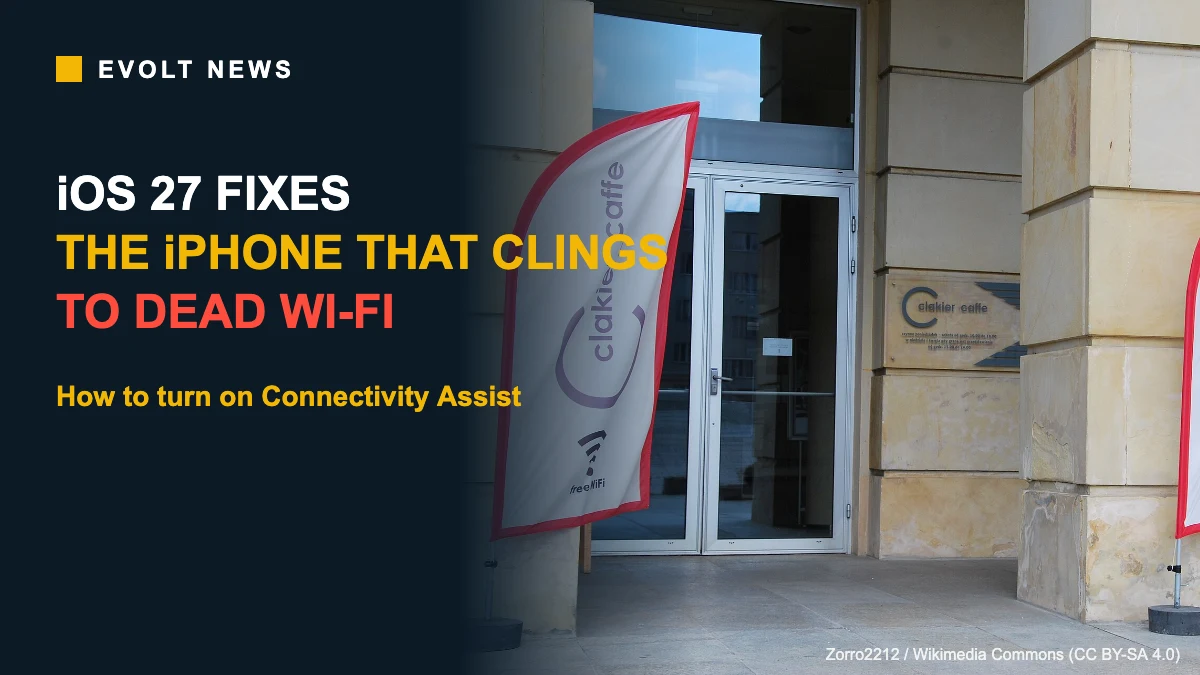
Featured image: Zorro2212 / Wikimedia Commons (CC BY-SA 4.0).
This guide includes the author’s opinion.
iOS 27 Connectivity Assist: FAQ
What is Connectivity Assist in iOS 27?
A feature that uses cellular data when your Wi-Fi connection is weak or unusable, so apps keep working instead of hanging on a bad network.
Where do I turn on Connectivity Assist?
Open Settings, tap Wi-Fi, scroll down and switch Connectivity Assist on or off.
Can I turn it off for one Wi-Fi network?
Yes. Apple says you can turn Connectivity Assist off for a specific network, for example a router where you always want to stay on Wi-Fi.
Does Connectivity Assist work when roaming abroad?
No. Apple says it is not used during international roaming, in cellular Low Data Mode, or with some third-party apps that stream audio and video.
Will Connectivity Assist use more mobile data?
It can, because your iPhone switches to cellular when Wi-Fi is bad. You can check your usage in Settings, Cellular or in your carrier’s app.
Which iPhones get Connectivity Assist?
It is part of iOS 27, so it works on iPhones that can run iOS 27. Update in Settings, General, Software Update.
Sources: Apple Support, 9to5Mac.
Our Take
iOS 27’s Connectivity Assist uses cellular data when Wi-Fi is weak, you control it in Settings, Wi-Fi, and you can switch it off for single networks.
In my view it’s one of the most useful quiet changes in iOS 27. Turn it on, and only watch your data if your plan is small.