Key takeaways
- iOS 27 redesigns the Apple Pay checkout in apps and on websites: you now swipe between cards or tap to see them all in a grid.
- For eligible cards, the payment sheet can show rewards, balances, debit account balance and pay-later options before you pay.
- The update fixes a long-standing annoyance where tapping the card opened the address editor instead of the card picker.
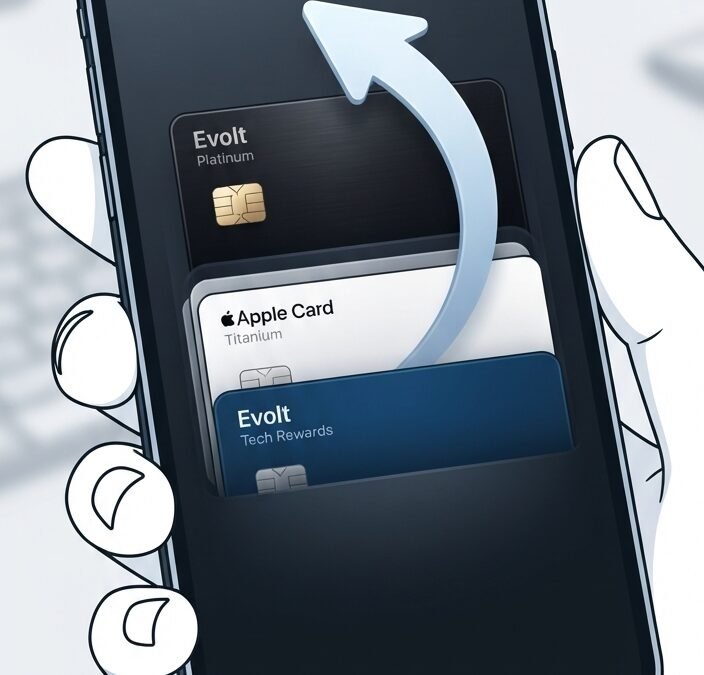
iOS 27 Apple Pay checkout finally works the way most people expected it to work all along. Apple has redesigned the payment sheet that appears when you pay inside an app or on a website, and the biggest change is simple: you can now swipe between your cards right on the main screen.
The redesign arrived with iOS 27 on September 14 and applies to every iPhone that can run the update. No extra hardware or Siri AI is needed. Here is what changed, why it matters, and how to set it up so it saves you time rather than costing you money.
In this article: What is new · The old problem · Card details before you pay · What it means in Europe · Practical tips · FAQ
What is new in the Apple Pay checkout
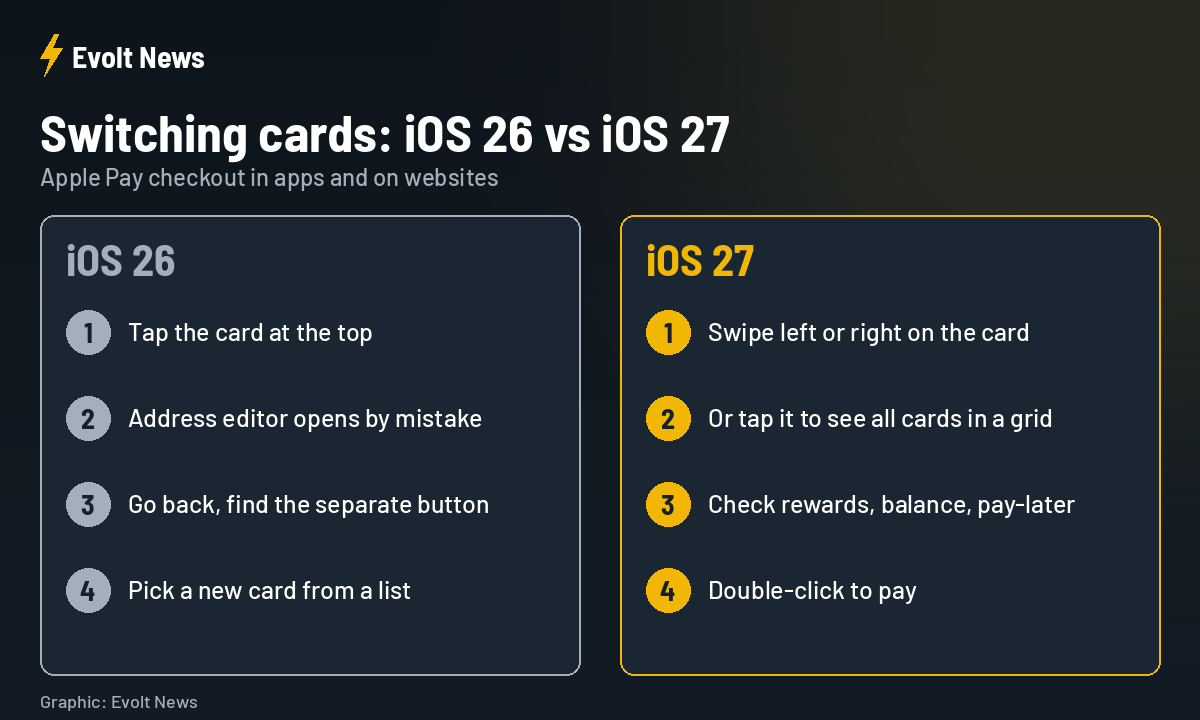
When the payment sheet opens in iOS 27, your default card sits in the middle and other cards peek out from the sides. That visual hint tells you what to do: swipe left or right to change the card. If you have many cards, tap the current one and a grid appears showing every eligible card in your Wallet.
The rest of the sheet has also been cleaned up. Shipping method, delivery address and billing address are shown together, with coloured icons, so you can check everything at a glance before confirming with a double-click of the side button.
Why the old design annoyed so many people
In iOS 26 and earlier, the natural move was to tap the card shown at the top of the sheet. But that tap opened the address editor, not the card list. To actually change the card, you had to find a separate control lower on the screen. It was a small thing, but millions of people repeated the same mistake every day, and even long-time Apple Pay users never quite got used to it.
Redesigning a payment screen is risky, because mistakes cost real money. Early reviews, including from testers who used the betas all summer, suggest Apple got this one right: the new flow is faster and harder to get wrong.
Card details before you pay
The second change is about information. According to Apple, the new sheet can show useful details about eligible cards directly at checkout:
| Information | Why it helps |
|---|---|
| Rewards balance | See points or cashback before choosing a card |
| Credit or debit balance | Avoid a declined payment on a card with low funds |
| Pay-later options | Split a larger purchase, if the card offers it |
| Add funds | Top up a supported debit card without leaving checkout |
Two limits are worth knowing. First, merchants and app developers control what appears on the payment sheet, so not every shop will show the same details. Second, the card information only appears when your bank or card issuer supports it.
What it means for users in Europe
The swipe-to-switch design and the cleaner layout work for everyone on iOS 27, including in the Czech Republic and the rest of Europe. The richer card details depend on banks, and many of the first examples Apple has shown, such as paying with American Express points, launched in the United States. Expect European banks to add support gradually, if at all. Features like Apple Cash bill splitting remain US-only.
Practical tips for the new checkout
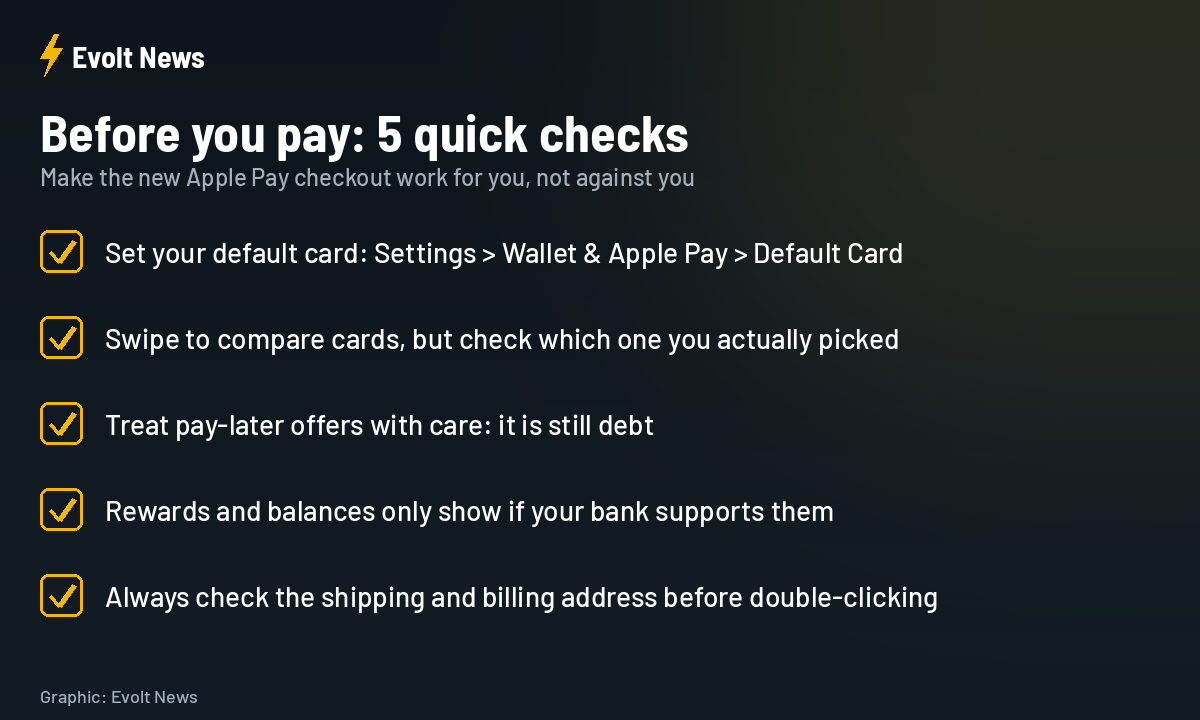
- Choose your default card on purpose. Go to Settings, then Wallet & Apple Pay, then Default Card. The default is what appears first on every checkout.
- Double-check after swiping. Swiping is fast, so glance at the selected card before you confirm.
- Be careful with pay-later. Having it one tap away is convenient, but it is still a loan. Use it for planned purchases, not impulse buys.
- Verify the address. The clearer layout makes it easy to spot an old delivery address, so use that moment.
iOS 27 Apple Pay Checkout FAQ
Does the new Apple Pay design work in shops at the terminal?
The redesign is for payments in apps and on websites. Paying at a terminal with your iPhone works as before.
Which iPhones get the new Apple Pay checkout?
Every iPhone that can install iOS 27. Apple does not list any extra hardware requirement for it.
Why don’t I see rewards or balances for my card?
Your bank or card issuer has to support it, and the shop decides which details appear on the payment sheet.
Can I still pick a card from a list?
Yes. Tap the current card and a grid with all your eligible cards appears.
Sources: 9to5Mac, Apple, The Mac Observer, BigGo Finance, Squared Tech.